

In the last article, we covered SSH from a Mac to Linux. SCP uses the same login; today we’re sending one file to Linux and bringing another back.
Say model.onnx is sitting in Downloads on the Mac, and the Linux user is alex at 192.168.1.50. Run this in Terminal on the Mac:
scp ~/Downloads/model.onnx alex@192.168.1.50:/home/alex/That’s it. Enter the same password you use for SSH, and model.onnx lands in /home/alex/.
One surprisingly common point of confusion: you don’t SSH into the board first. The command runs on the computer that has the local file – in this case, the Mac.
Where SCP Puts the File
SCP reads from left to right. The first path is the source, and the second is where it goes:
scp source destinationThe colon after the IP address is doing most of the work here. Everything before it identifies the Linux login; everything after it is a path on that Linux machine. Without the colon, you’ve written two local paths and scp has no remote host to contact.
You can also give the copied file a new name:
scp ~/Downloads/model.onnx alex@192.168.1.50:/home/alex/detector.onnxThe original file stays named model.onnx on the Mac. Only the remote copy becomes detector.onnx.
Copy a Whole Directory
A directory needs -r:
scp -r ~/Projects/camera-app alex@192.168.1.50:/home/alex/That sends the directory and everything under it. And yes, “everything” includes symbolic links that scp encounters while walking the tree. A tidy project folder is fine; a project folder pointing at a giant dataset is worth checking before you press Enter.
Spaces in local filenames are less dramatic. Quote the path, but use $HOME rather than putting ~ inside double quotes (the shell won’t expand it there):
scp "$HOME/Downloads/test image.jpg" alex@192.168.1.50:/home/alex/Use the SSH Setup You Already Have
If the earlier SSH setup left you with an entry like this in ~/.ssh/config:
Host kiwipi
    HostName 192.168.1.50
    User alex
    IdentityFile ~/.ssh/id_ed25519
Then scp understands kiwipi, too:
scp ~/Downloads/model.onnx kiwipi:/home/alex/No IP address, no repeated username, and no separate SCP configuration. This is the nice part of SCP using SSH underneath: the host alias, key, port, and other connection settings aren’t trapped inside the ssh command.
Without an alias, pass the key and port directly:
scp -i ~/.ssh/id_ed25519 -P 2222 ~/Downloads/model.onnx alex@192.168.1.50:/home/alex/That is a capital -P. Lowercase -p preserves timestamps and file mode bits instead, as the OpenBSD SCP manual confirms. Whoever assigned those two options clearly wasn’t trying to make them memorable.
Copy Files Back to the Mac
To copy in the other direction, swap the paths:
scp alex@192.168.1.50:/home/alex/results.csv ~/Downloads/You still run the command on the Mac. This time the first path contains the remote host, so results.csv comes from Linux and lands in macOS Downloads. For a results directory, add -r again:
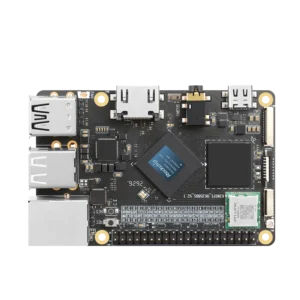
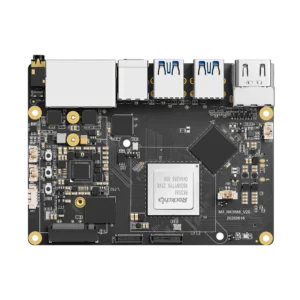
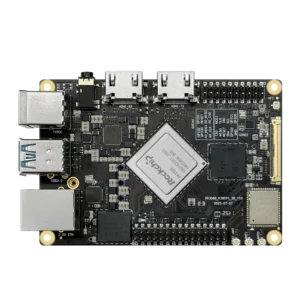
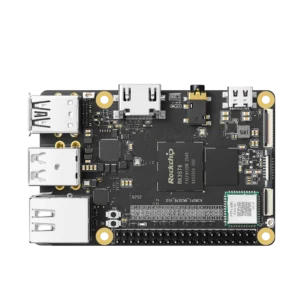
scp -r alex@192.168.1.50:/home/alex/results ~/Downloads/On a KiwiPi 5 or KiwiPi 5 Pro, that might mean sending an ONNX model to the RK3588 board, then pulling inference logs or saved frames back to the Mac. SCP doesn’t care what’s inside the file. Storage and network speed matter; our RK3588 specs and performance article covers the hardware, but the SoC model doesn’t change this command.

Copy to an SSD or USB Drive
You can target mounted storage directly:
scp ~/Downloads/dataset.tar alex@192.168.1.50:/mnt/data/Before sending a large archive, check the mount and free space on Linux. If the disk appears as /dev/sda1, our steps to mount an SDA1 drive cover that part:
findmnt /mnt/data
df -h /mnt/data
If findmnt returns nothing, stop there. An empty /mnt/data directory can still exist when the drive isn’t mounted, and SCP will happily fill the system disk instead. The command worked; just not in the way you wanted.
Permission Denied, Missing Paths
If SSH itself rejects the login, check the username, key, password, and address. If SCP connects and only then says Permission denied, authentication probably isn’t the problem – the remote user can’t write to that directory (or can’t read the source during a download).
For /var/www/, /opt/, or another protected path, copy to the user’s home directory first:
scp ~/Downloads/app.tar alex@192.168.1.50:/home/alex/
ssh alex@192.168.1.50 'sudo mv /home/alex/app.tar /opt/app.tar'
It’s two commands, but it avoids enabling root SSH access. It also avoids the usual panic fix, chmod 777, which turns a file-transfer problem into a permissions problem for later. The Linux file permission has the less destructive options.
No such file or directory means exactly that, although it doesn’t tell you which computer has the bad path. Check the local source with ls on the Mac, then check the remote destination over SSH. The colon tells you where one filesystem ends and the other starts.
If SCP says the source is not a regular file, you probably gave it a directory without -r. Add the option after making sure you actually want the entire directory.
And when the message is less helpful, add -v:
scp -v ~/Downloads/model.onnx alex@192.168.1.50:/home/alex/The output is ugly, but it shows the address, configuration file, key, and authentication method SCP actually used. Much better than changing random permissions and hoping for the best.
SCP is a good fit for a model, a build, or a directory you copy once in a while. For a 200GB dataset over a flaky connection, use rsync over SSH instead; it handles repeated synchronization and interrupted transfers much better.
For the ordinary case – one Mac, one Linux board, one file – the short command near the top is all you need.
FAQ
Does SCP Come With macOS?
Yes. Open Terminal and run scp; you don’t need to install a separate client on a standard macOS system.
Can SCP Use My SSH Key?
Yes. Use the same SSH host alias, or pass the key with -i. If SSH already logs in with that configuration, SCP can reuse it.
Why Does SSH Work While SCP Gets Permission Denied?
SSH proves that the user can log in. It doesn’t give that user permission to write everywhere on the Linux filesystem. Try the user’s home directory first, then move the file with sudo if the final directory requires it.