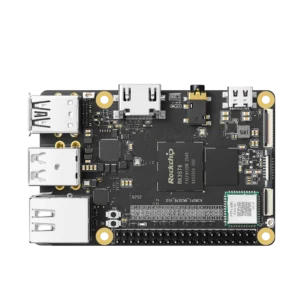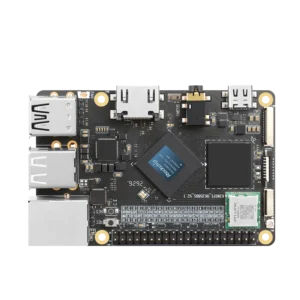


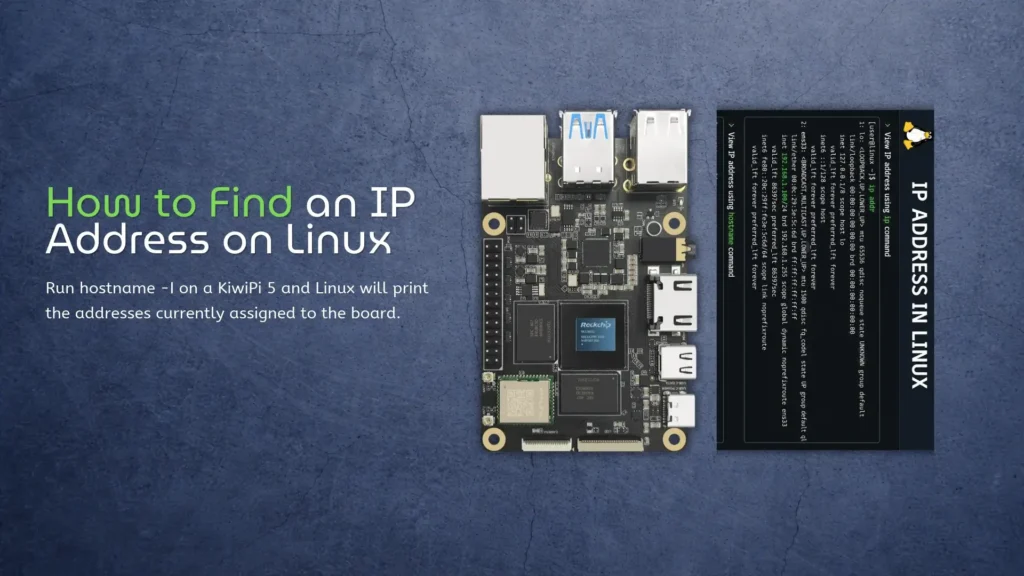
Run hostname -I on a KiwiPi 5 and Linux will print the addresses currently assigned to the board. On a typical home network, the result might look like this:
hostname -I192.168.1.50That 192.168.1.50 address is the one you would normally use for SSH, SCP file transfers, or a web interface from another device on the same network. You may get two or three results instead. Linux can hold several addresses at once, and a KiwiPi connected over both Ethernet and Wi-Fi will usually have a separate address for each interface.
Check the Address on KiwiPi
hostname -I is convenient because it leaves out most of the interface detail. It also leaves you to decide which result matters. For the full view described by the Linux IP address manual, use:
ip address showLook for an inet line under the active Ethernet or Wi-Fi interface. Names vary between images, but end0, eth0, and wlan0 are common. Ignore 127.0.0.1 under lo, since another computer cannot reach it.
There is a shorter version that hides interfaces which are down:
ip -br address show upIts output is easier to read when both Ethernet and Wi-Fi are enabled. If they show 192.168.1.50/24 and 192.168.1.82/24, neither is wrong. Use the address belonging to the connection your other computer can reach.
The route table can make that choice for you. The Linux route command manual documents the lookup used here:
ip route get 1.1.1.1A result may include dev end0 and src 192.168.1.50. The value after src is the address Linux selected for that route, while dev names the interface. No packets need to reach 1.1.1.1 for this lookup—the kernel is reporting how it would send them.
Find a Headless KiwiPi
A new KiwiPi installation is often headless. Open the router’s administration page and check its DHCP client or connected-device list for a device that appeared when the board booted.
The hostname may contain kiwipi, though an image can use another name. If the router only shows MAC addresses, compare the entry with the board’s network information. Disconnecting and reconnecting the board is crude, but it makes the new entry fairly obvious.
And write the address down once you find it. DHCP leases are not permanent assignments. A router can give the same board another address after a reboot, a lease change, or a move to a different network.
There is another route that avoids remembering the number. Run hostname on the KiwiPi:
hostnameIf it returns kiwipi, working mDNS may let another computer reach kiwipi.local. Support depends on the Linux image, client, and network, so treat that name as a convenience—not the only way back into a headless board.
Test the Address Before SSH
Once you have a candidate address, test it from the computer you plan to use:
ping 192.168.1.50Replies show that the two devices can exchange ICMP packets. They do not prove that an SSH server is installed or listening on port 22. On a Chromebook, the same check appears among the useful Crosh commands; on macOS or Linux, it works in the normal terminal.
arp -a or ip neighbour may also show the KiwiPi after your computer has communicated with it. But the neighbour table is a cache, not a complete network inventory. An absent entry only means the client has not learned that neighbour recently.
With the address confirmed, SSH is the next step. Our guide to SSH from a Mac covers the client and server setup:
ssh user@192.168.1.50Replace user with the account created for the Linux image. A timeout points back toward the address, routing, firewall, or a powered-off board. Connection refused is different: the machine answered, but nothing accepted the connection on that port. That usually sends you to the SSH service rather than back to the DHCP list.
These are local addresses for reaching the KiwiPi inside your LAN. The router’s public IP is a different thing; exposing SSH through it requires firewall rules, port forwarding, and a security plan.
Keep the Address Stable
For a board that should keep the same local address, add a DHCP reservation in the router. Bind the KiwiPi network interface’s MAC address to an unused address, then renew the lease or reboot the board. The menu might be called address reservation, static lease, or fixed DHCP assignment.
This is generally less fragile than typing a static address into Linux without checking the router’s DHCP range, gateway, and DNS settings. And remember that the Ethernet and Wi-Fi interfaces have different MAC addresses—reserve the one you intend to use.
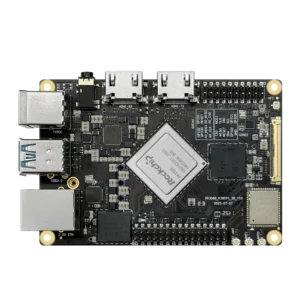
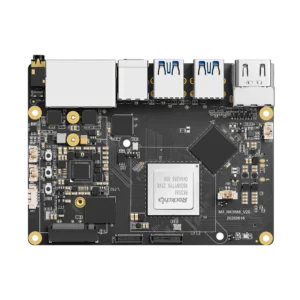
The same commands work on KiwiPi 4, KiwiPi 5B, and KiwiPi 5 Pro when their Linux image includes the standard ip and hostname tools. For the two higher-end boards, the RK3588 performance guide covers the processor; the network problem does not change with it.
FAQ
How do I find my Linux IP address from Terminal?
Run hostname -I for a short result. Use ip -br address show up when you need to see which address belongs to Ethernet or Wi-Fi.
How do I find a headless KiwiPi IP address?
Check the DHCP client list in your router. Look for the board’s hostname or match its MAC address, then confirm the result with ping.
Why does my KiwiPi show two IP addresses?
Ethernet and Wi-Fi normally receive separate addresses. Virtual interfaces can add more. Use ip route get 1.1.1.1 to see which address Linux chooses for its current default route.
Will the KiwiPi IP address stay the same?
Not necessarily. DHCP can assign another address later. Create a router-side DHCP reservation if other machines or scripts need to find the board at a stable address.