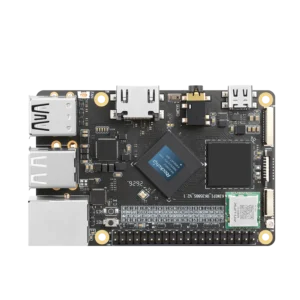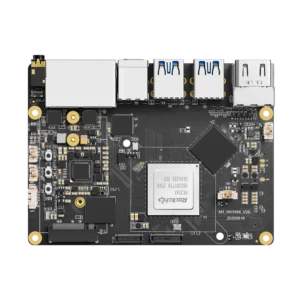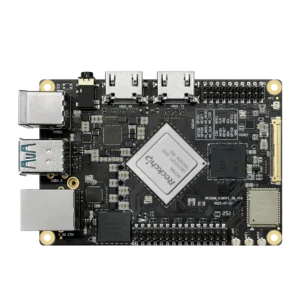


Docker Engine supports Ubuntu 24.04 on ARM64, including the architecture used by KiwiPi 5. Install it from Docker’s APT repository, along with the Compose plugin, to run containers without a desktop application.
The board’s Linux image still supplies the kernel. A vendor image needs working container features – namespaces, cgroups and networking – so a successful package installation is only the first check. The commands below target a fresh Ubuntu 24.04 installation, using a regular account with sudo access.

You can do this over SSH; there’s no need to connect a monitor. Our guide to SSH from a Mac covers that connection. Run the installation commands on the KiwiPi, not in the Mac’s local shell.
Install Docker Engine
Check Ubuntu and architecture
Check the installed system before adding a repository:
Bash
cat /etc/os-release
 uname -m
 dpkg --print-architecture
For this guide, the release should be Ubuntu 24.04, codename noble. A 64-bit KiwiPi installation should report aarch64 from uname and arm64 from dpkg. Those are two names you’ll encounter for the same architecture. An Intel machine normally reports amd64 through dpkg.
If Docker already runs on this machine, stop here and check how you installed it. Docker’s Ubuntu installation instructions list conflicting packages, including docker.io and standalone containerd/runc. Removing a runtime can interrupt other services; this fresh-install procedure isn’t a migration plan.
Add the Docker repository
Add the signing key and repository:
Bash
sudo apt update
 sudo apt install ca-certificates curl
 sudo install -m 0755 -d /etc/apt/keyrings
 sudo curl -fsSL https://download.docker.com/linux/ubuntu/gpg \
   -o /etc/apt/keyrings/docker.asc
 sudo chmod a+r /etc/apt/keyrings/docker.asc

 sudo tee /etc/apt/sources.list.d/docker.sources <<EOF
 Types: deb
 URIs: https://download.docker.com/linux/ubuntu
 Suites: noble
 Components: stable
 Architectures: $(dpkg --print-architecture)
 Signed-By: /etc/apt/keyrings/docker.asc
 EOF

 sudo apt update
The repository entry uses noble because these instructions target Ubuntu 24.04. The architecture comes from dpkg, so the command doesn’t hard-code an Intel package source onto an ARM board. Signed-By points APT to the key downloaded above.
Start and verify Docker
Install the packages, start the service and check both Engine and Compose:
Bash
sudo apt install docker-ce docker-ce-cli containerd.io \
   docker-buildx-plugin docker-compose-plugin
 sudo systemctl enable --now docker
 sudo docker version
 sudo docker compose version
 sudo docker run --rm hello-world
hello-world should print a success message and exit. That’s normal: it’s a short installation check, not a service that stays running. If it fails, keep the error message; a registry download failure and a daemon startup failure need different fixes.
Keep using sudo for Docker commands in this example. Adding an account to the docker group removes that requirement, but also gives it root-level control through Docker. Changing the socket to mode 777 is a much worse fix for a permission error.
Run a website with Compose
Compose keeps the image, ports and mounts in a file. That’s easier to keep track of than reconstructing a long docker run command from shell history, especially after you’ve changed it a few times.
Create a project directory and a small HTML page:
Bash
mkdir -p ~/kiwipi-web/html
 cd ~/kiwipi-web
 printf '<h1>Hello from KiwiPi</h1>\n' > html/index.html
 chmod 755 html
 chmod 644 html/index.html
The explicit modes let the container read this example page even if your account uses a restrictive umask. For other applications, check which user needs access before changing modes. Our Linux file permissions guide covers that distinction.
Create compose.yaml in the same directory, with these contents. This block is YAML configuration, not a shell command:
YAML
services:
   web:
     image: nginx:alpine
     ports:
       - "127.0.0.1:8080:80"
     volumes:
       - ./html:/usr/share/nginx/html:ro
     restart: unless-stopped
The ./html directory lives on the KiwiPi. Nginx reads it inside the container, and :ro prevents that container from changing it. Editing html/index.html on the host changes the page it serves; rebuilding the image isn’t necessary.
The port mapping binds to 127.0.0.1, so the example listens locally on the board. Omitting that address publishes it on the host’s interfaces. Docker’s published ports can bypass UFW rules, so don’t treat an existing UFW configuration as proof that a published container is private.
Start the service and request the page on the KiwiPi:
Bash
sudo docker compose config
 sudo docker compose up -d
 curl http://127.0.0.1:8080
Open the page from a Mac
To view it in a Mac browser, open another Mac terminal and create an SSH tunnel. Replace the account and board address with your own:
Bash
ssh -N -L 8080:127.0.0.1:8080 alex@192.168.1.50Leave that terminal open and visit http://localhost:8080 on the Mac. Here, localhost is the Mac; SSH forwards the connection to the KiwiPi’s local port. If Mac port 8080 is busy, change the first 8080 in the tunnel command to 8081 and browse to localhost:8081.
ARM64 images and container management
The same Compose file can work on Intel hardware when the image has both amd64 and arm64 builds. Our RK3588 versus Intel N100 comparison explains why the application architecture belongs in the purchase decision, before counting CPU cores.
Check an image’s published platforms with:
Bash
sudo docker buildx imagetools inspect nginx:alpine
Look for linux/arm64 for a KiwiPi. If another image reports no matching manifest, find an ARM64 build or build it from source. Adding platform: linux/amd64 doesn’t install an emulator or make the application native.
Our single-board server experiment gives a separate example of web workloads on KiwiPi 5. It used a purpose-built test application, not this Nginx container; its throughput numbers don’t describe this installation.
Run these management commands from the directory containing compose.yaml:
| Task | Command |
| Check service status | sudo docker compose ps |
| Read recent logs | sudo docker compose logs –tail 20 web |
| Restart the service | sudo docker compose restart web |
| Stop and remove the container | sudo docker compose down |
| Recreate it from the file | sudo docker compose up -d |
Try down followed by up -d, then request the page again:
Bash
sudo docker compose down
 sudo docker compose up -d
 curl http://127.0.0.1:8080
The HTML survives because it sits in the host directory, outside the removed container. That makes replacement convenient. It doesn’t make a backup – copy the project and its data somewhere else before relying on it for anything you can’t recreate.
FAQ
Do I install Docker Compose separately?
The docker-compose-plugin package above supplies docker compose. Use the space between those words; older tutorials often use the separate docker-compose executable.
What if Docker cannot connect to the daemon?
First check sudo systemctl status docker –no-pager. If the service failed, read sudo journalctl -u docker -n 50 –no-pager. Kernel, storage and configuration errors need fixing at the host; reinstalling the CLI won’t solve them.
Will the website restart after a reboot?
With Docker enabled at boot, restart: unless-stopped brings the container back unless you deliberately stopped it. After docker compose down, no container remains to restart; run docker compose up -d to create it again.