

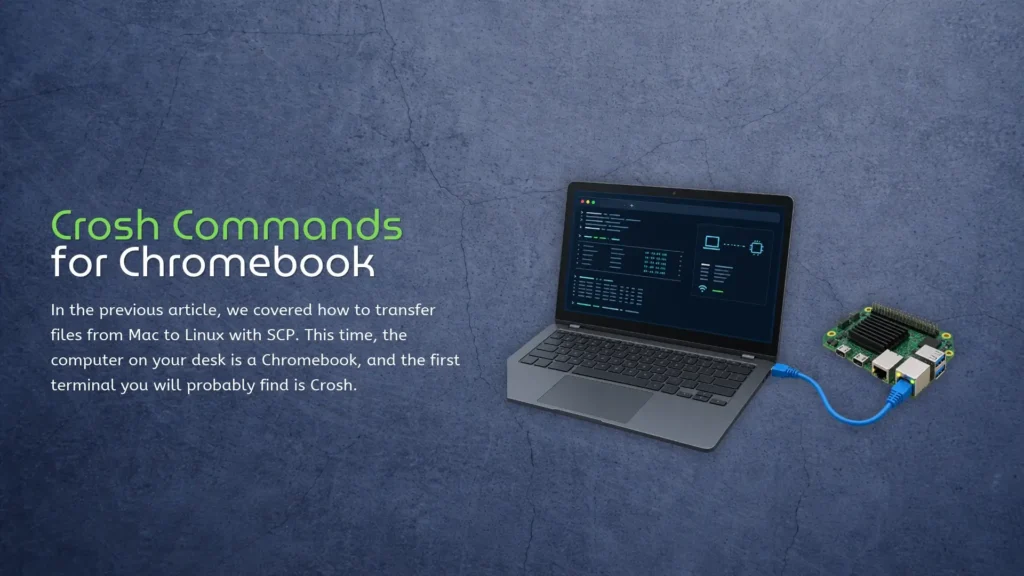
In the previous article, we covered how to transfer files from Mac to Linux with SCP. This time, the computer on your desk is a Chromebook, and the first terminal you will probably find is Crosh.
Press Ctrl + Alt + T on a Chromebook and Crosh opens in a browser tab. Start with help. It prints the commands available on that Chromebook, which is more useful than copying a list written for a different ChromeOS release. The official Crosh command reference makes the same point: the available tools vary by release, channel, device policy, and Developer Mode.
Crosh is a small troubleshooting console, not Bash or a Chromebook version of Windows Command Prompt. Many online lists mix standard Crosh, the Developer Mode shell, and Linux Terminal. A copied command may return unknown command simply because it does not exist on your build.
Start With Your Crosh Commands List
Open Crosh and run:
help
help_advanced
The first shows common commands; the second includes less frequently used ones. ChromeOS releases, device policies, channels, and hardware can change the result, so the list on the screen wins. Tab completion works, while help battery_test shows the syntax for one command.
Network Commands Worth Keeping
Use ping first when a Chromebook cannot reach another machine. It sends ICMP echo requests and tells you whether the target answers.
ping 192.168.1.50Replace the address with the IP of your router, server, or KiwiPi board. Stop the command with Ctrl + C. A reply confirms that packets can travel between the two devices. It does not prove that SSH is running, that port 22 is open, or that your username and key are correct.
Crosh also accepts gw as a shortcut for the current default gateway:
ping gwThis gives you a useful split. If the gateway does not reply, check the Chromebook’s Wi-Fi or local network. If it replies but the KiwiPi does not, check the subnet, the board’s current address, and client isolation on the access point.
When packets reach the gateway but disappear farther along the route, try tracepath:
tracepath 8.8.8.8It shows the path toward the destination. Some routers ignore these packets, so an incomplete result does not prove a fault. It can still show where a route changes or stops.
The routing table is available as well:
routeUse route -4, route -6, or route --all to narrow the result. Managed Chromebooks may also expose network_diag --hosts for connectivity and TLS checks.
Battery and Memory Checks
For a quick battery check, unplug the charger and run:
battery_test 60The number is the test length in seconds; without it, the current Crosh source code defaults to 300. Crosh prints the battery state and calculated health, waits, then reports the charge lost. Treat 60 seconds as a quick check because brightness, background work, and rounded battery readings can move the result around.
memory_test is less casual:
memory_testIt runs an extensive test on available free memory. Save your work first. The command deliberately consumes most free memory while leaving some for ChromeOS.
Some builds also expose diag. List the routines instead of guessing a name:
diag listIf these commands do not appear in help, use the ChromeOS Diagnostics app.
Crosh Is Not Your SSH Terminal
This trips people up because old tutorials still show ssh at the Crosh prompt. Regular Crosh is not the place for a normal SSH session now. Use the ChromeOS Secure Shell client or enable the Linux development environment and run OpenSSH from its Terminal.
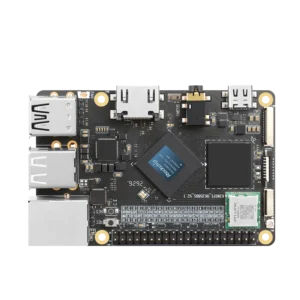
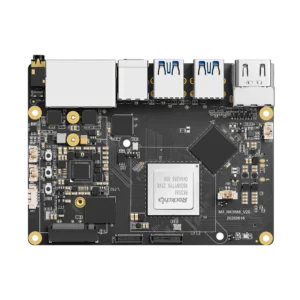
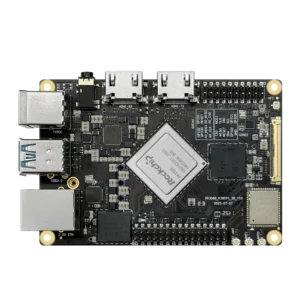
Crosh can still help before that. Suppose a KiwiPi 5 is connected by Ethernet and has the address 192.168.1.50. Run ping 192.168.1.50 in Crosh. If it replies, move to the SSH client and diagnose the service, credentials, or key. If it does not, fix the network path first. That is much quicker than changing SSH settings while the two machines cannot see each other.
The same separation applies after login. Commands such as chmod and chown run on the KiwiPi or in Linux Terminal, not Crosh. Our guide to Linux file permissions covers that part. To move data instead, copy files with SCP.
Some devices expose shell in Developer Mode, but enabling that mode only to obtain a fuller shell is a poor trade. It changes the Chromebook’s security model and the transition can erase local data. Linux Terminal is the better workspace.
When connecting to KiwiPi 5 or KiwiPi 5 Pro, the board runs the Linux commands. The Chromebook only needs a client and a route to it. Our Rockchip RK3588 guide covers the processor in those boards. The steps for SSH from a Mac use the same server-side setup, though ChromeOS provides a different client.
When a Crosh Command Is Missing
Check the spelling, then run help and help_advanced. If the command is absent, assume the current ChromeOS build does not expose it. Managed-device policy can remove functions, while older posts may describe commands that moved, changed, or disappeared.
Do not enable Developer Mode as a generic fix. Network checks belong in Crosh. Packages, scripts, permissions, SCP, and most SSH work belong in Linux Terminal or a dedicated client. Hardware tests may live in the Diagnostics app.
FAQ
How do I open Crosh on a Chromebook?
Press Ctrl + Alt + T. Crosh opens in a browser tab, and you can enter help to see the commands supported by that device.
What are some useful Crosh commands?
Start with help, help_advanced, ping, tracepath, and route. Depending on the ChromeOS build, battery_test, memory_test, and diag may also be available.
Is Crosh the same as Linux Terminal?
No. Crosh contains a limited set of ChromeOS diagnostic commands. Linux Terminal belongs to the optional Linux development environment and can run standard Linux tools and packages.
Can I SSH from Crosh?
Do not plan around SSH in regular Crosh. Use the ChromeOS Secure Shell client or OpenSSH inside Linux Terminal. Crosh ping remains useful for checking whether the remote machine is reachable before you connect.
Does Crosh require Developer Mode?
No. Basic Crosh commands work on a normal Chromebook. The exact set varies by ChromeOS version, hardware, and administrator policy.