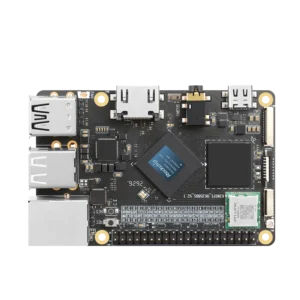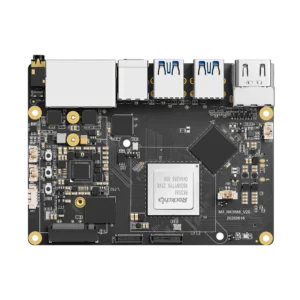


On a KiwiPi running Linux, you can read the kernel’s thermal sensors through /sys/class/thermal/thermal_zone*/temp. Each zone also has a type file, and that name matters: the first zone in the directory isn’t automatically the CPU.
The names depend on the board image and its device tree. Your KiwiPi 5 and KiwiPi 5 Pro may expose different zone labels from another RK3588 board, even though the command to list them is the same.
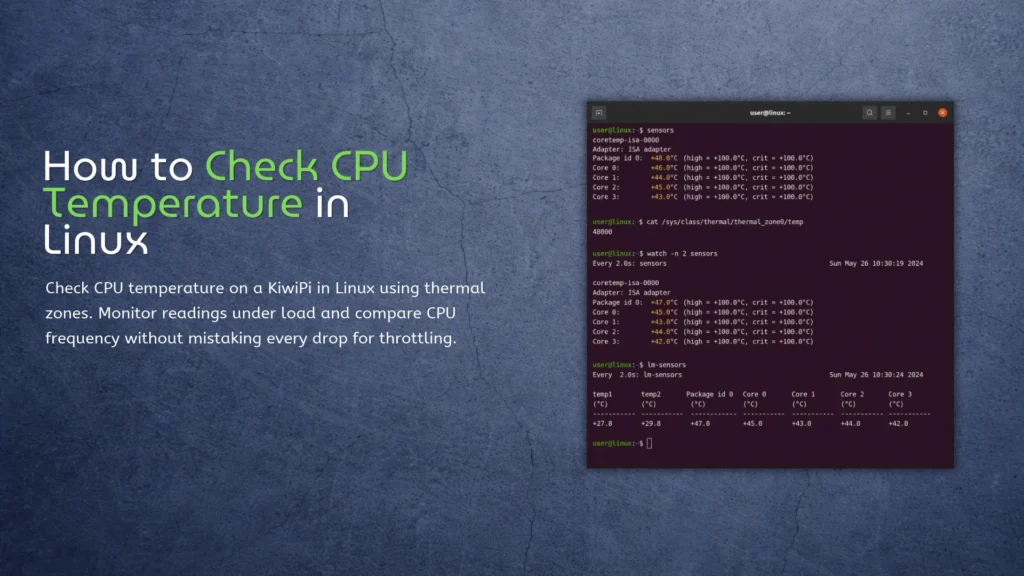
Find the CPU thermal zone
Start with this in a terminal on the board:
for zone in /sys/class/thermal/thermal_zone*; do


[ -r "$zone/temp" ] || continue


printf '%s %s %s\n' \


"$(basename "$zone")" "$(cat "$zone/type")" "$(cat "$zone/temp")"


done
The three fields are the zone directory, its type, and the raw temperature. A reading of 59000 means 59°C; Linux reports these values in millidegrees Celsius (see the kernel’s thermal sysfs interface documentation). Find the zone labeled for the CPU or SoC before you use it as a processor reading.
You can also try sensors, the command supplied by the lm-sensors package. On the KiwiPi Ubuntu 24.04.3 LTS image, install it if the command is missing:
sudo apt update


sudo apt install lm-sensors


Then read the sensors once or refresh them every two seconds:


sensors


watch -n 2 sensors
Stop watch with Ctrl+C. On an Intel PC, coretemp can give you the nice Package id 0 and Core 0 labels. A KiwiPi’s output depends on which hwmon readings its kernel exposes, so it may look different or show fewer labels. The thermal-zone files above need no extra package.
You can print a single identified zone in degrees Celsius like this (replace thermal_zone2 with the directory you found):
awk '{ printf "%.1f°C\n", $1 / 1000 }' /sys/class/thermal/thermal_zone2/temp
That last path is only an example. Copying someone else’s thermal_zone0 command and getting a number back doesn’t tell you which part of your board you measured.
An RK3588 board can have several sources of heat, including CPU cores, GPU activity and the surrounding hardware. Our Rockchip RK3588 specs and performance guide covers the chip itself. The number you want depends on the job you’re checking. For CPU work on a KiwiPi 5 or 5 Pro, start with the CPU-related zone and keep the other zone labels in view if they exist.
Watch temperature during a real task
A single reading after boot isn’t very useful if the problem appears ten minutes into a build or video encode. Take one reading at idle, run the task that causes trouble, and take another while the task is still running. Better yet, leave a short sampling loop open in a second terminal:
while :; do


date '+%H:%M:%S'


awk '{ printf "CPU zone: %.1f°C\n", $1 / 1000 }' /sys/class/thermal/thermal_zone2/temp


sleep 2


done
Again, substitute your actual CPU zone. Stop the loop with Ctrl+C. It’s deliberately plain: no package to install, and you can keep it running over SSH while the board does its normal work.
Check CPU frequency
Temperature alone won’t tell you whether the CPU has slowed down. Linux also exposes CPU frequency policies, and an RK3588 image may list several of them because its CPU cores don’t all share one policy. Read the available policies instead of hard-coding cpu0:
for policy in /sys/devices/system/cpu/cpufreq/policy*; do


[ -r "$policy/scaling_cur_freq" ] || continue


printf '%s %s kHz\n' \


"$(basename "$policy")" "$(cat "$policy/scaling_cur_freq")"


done
The number is in kHz, so 1800000 is 1.8 GHz. But scaling_cur_freq often shows the last frequency requested by the scaling driver, rather than a measurement of the clock at that exact instant (the kernel’s CPU frequency scaling documentation spells out the distinction). A lower number while the board is idle is normal; the governor may simply have less work to do.
Run the same sustained task when you compare readings. If temperature climbs and a policy’s frequency falls while that task remains busy, you have a reason to investigate thermal limits. It isn’t a verdict from one snapshot. The workload, CPU utilization and the governor can all change frequency too.
What the readings tell you
Some images expose trip points under the thermal zone and cooling-device states under /sys/class/thermal/cooling_device*. Those can help you see what the kernel is doing, but the entries vary by kernel and board configuration. I wouldn’t pick a supposedly safe maximum temperature from a random forum post and apply it to every KiwiPi image.
Here are the cases I’d separate before changing a heatsink or fan:
| What you see | Check next |
| Temperature rises; frequency stays broadly stable | Continue the real workload long enough to see whether performance changes. |
| Temperature rises; frequency drops under comparable sustained load | Check cooling, airflow, the CPU policy and any exposed trip or cooling states. |
| The board resets or disconnects | Check power delivery as well as temperature; a reset by itself doesn’t identify overheating. |
If /sys/class/thermal/thermal_zone* gives you no usable readings, check the Linux image and kernel device tree before assuming the SoC has no temperature sensor. The same goes for missing CPUFreq policy files: a command written for another distribution can’t create interfaces that your kernel doesn’t expose.
You don’t need a display connected to check any of this. If you’re connecting from a Mac, our guide to SSH from macOS covers the first login. Run the short loop in one session, and put your compile or media task in another. Keep the time stamps if you want to line up a slowdown with the corresponding temperature rise.
Also check power when a KiwiPi 5 Pro behaves badly under load. Our KiwiPi 5 Pro power guide covers the USB-C PD requirements. An undersized or unsuitable supply can cause its own failures; a thermal reading won’t diagnose a power problem. It’s worth ruling that out before buying a bigger fan.
Frequently asked questions
Is thermal_zone0 always the CPU?
No. Read its type file, then choose the zone that corresponds to the CPU or SoC on your image.
Do I need to install lm-sensors?
No. The thermal sysfs files used above are already exposed by a kernel that registers those thermal zones. sensors is an optional front end if its supported drivers provide useful labels on your image.
Does a falling CPU frequency prove thermal throttling?
No. Compare the same sustained load, temperature trend and policy values over time. A governor can lower frequency simply because the CPU has less to do.