





The Orange Pi PC arrived at a time when running Android on a $20–30 single-board computer still felt unusual. Its Allwinner H3 processor could decode high-resolution video, the board included HDMI and Ethernet, and official Android images were available alongside Ubuntu and Debian. For media players, simple displays, and low-cost experiments, that was an appealing combination.
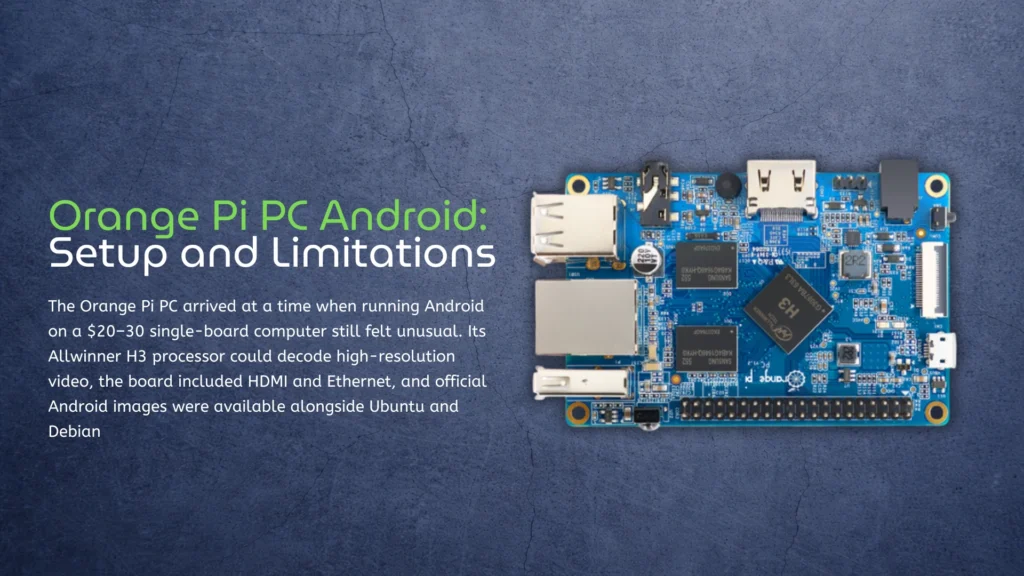
The hardware hasn’t changed, but Android has. The official image for the Orange Pi PC is based on Android 4.4, while most current applications expect a much newer operating system, more memory, and faster graphics. Community images extend the board’s useful life, but they don’t remove its fundamental limitations.
That makes the Orange Pi PC an interesting Android platform for experimentation rather than a sensible starting point for a new product. It can still handle a few practical tasks, especially if you already own the board, but modern SBCs based on processors such as the Rockchip RK3588 operate in an entirely different class. Before looking at those alternatives, however, it’s worth understanding what the original Orange Pi PC can actually run.
Orange Pi PC Was Built for a Different Android Era
The name can be slightly confusing. Orange Pi PC isn’t a general description of an Orange Pi used as a desktop computer – it’s a specific board built around the Allwinner H3 processor.
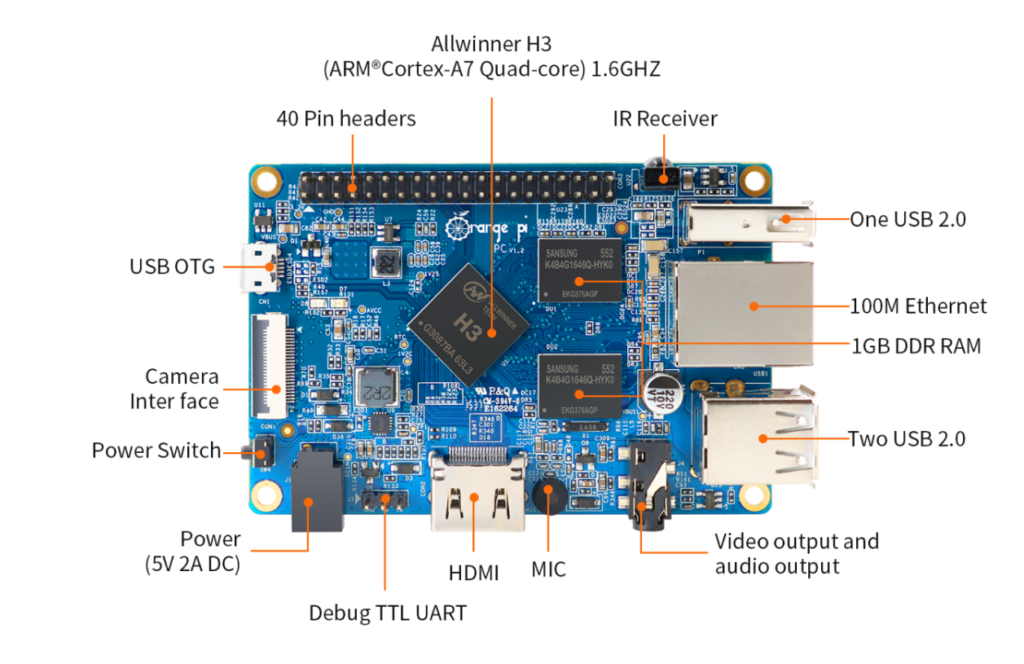
Its main specifications include:
- Quad-core Arm Cortex-A7 CPU
- Mali-400 MP2 GPU
- 1GB LPDDR3 memory
- microSD storage
- HDMI output
- 10/100 Ethernet
- Three USB 2.0 host ports
- Official support for Android 4.4, Ubuntu, and Debian
These specifications were competitive for an inexpensive SBC when the board appeared. The H3 combined four small CPU cores with a dedicated video engine, making the Orange Pi PC particularly attractive for media playback and lightweight Android applications. According to the official Orange Pi PC specifications, Android 4.4 remains one of the supported operating systems.
The problem is that Android 4.4 was released in 2013. Modern browsers, streaming services, and many applications no longer support it, while 1GB of memory leaves little room for current Android software. Even when an application can be installed, performance and stability may fall short of what users now expect from an Android computer.
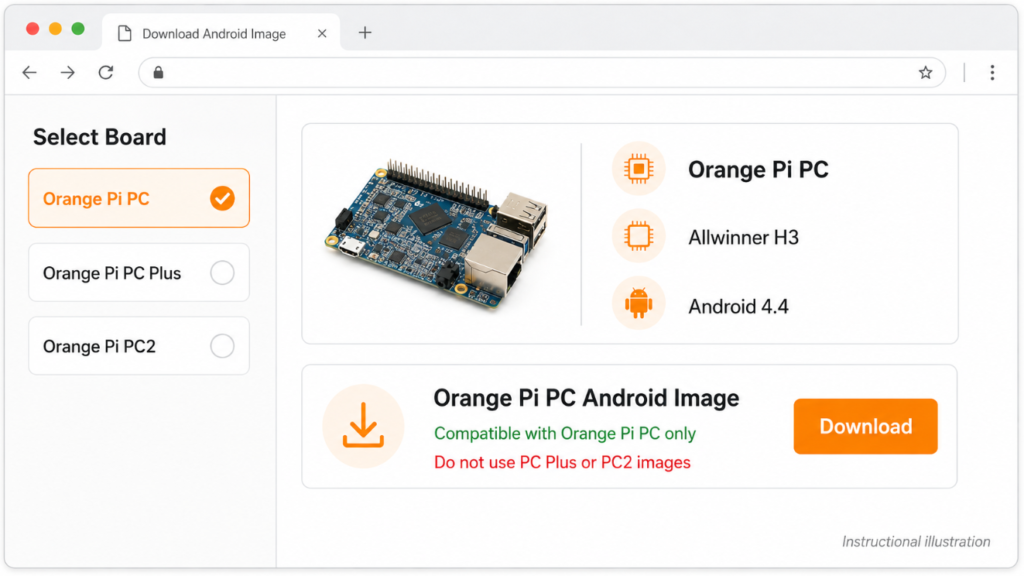
There are several similarly named boards, including the Orange Pi PC Plus and Orange Pi PC2. They don’t use identical hardware, and their Android images shouldn’t be treated as interchangeable. Installing an image intended for another model is one of the most common reasons an Orange Pi PC fails to boot.
Can the Orange Pi PC Still Run Android?
Yes, but the more useful question is what you expect Android to do.
The official Android 4.4 image remains the safest historical option because it was made specifically for the board. It can be suitable for offline applications, basic media playback, control panels, retro gaming, and simple touchscreen projects. If the required application was designed for older versions of Android and doesn’t need current security updates, the Orange Pi PC may still be adequate.
Unofficial Android 7 builds have also circulated within the Orange Pi community. They offer better application compatibility than Android 4.4, but support for HDMI, hardware video decoding, networking, USB devices, and Google services can vary between images. A newer Android version number doesn’t necessarily mean the complete system will work better.
It’s also important not to confuse these community images with Orange Pi OS (Droid). The latter is a modern Android-based desktop system developed for newer Orange Pi hardware. It isn’t a drop-in upgrade for the Allwinner H3 used in the Orange Pi PC.
For a hobby project, working around these limitations may be part of the appeal. For digital signage, kiosks, industrial interfaces, or devices that will connect to the internet, an unsupported Android release creates a much harder problem. At that point, the low cost of reusing the board may no longer compensate for the time spent maintaining old software.
Android Options for the Orange Pi PC
Finding an Android image is more complicated than the original product page suggests. The official build is old, while newer community releases may improve application compatibility at the cost of stability or hardware support.
| Android option | Support status | Main advantage | Main limitation |
| Official Android 4.4 | Official legacy image | Designed specifically for the Orange Pi PC | Too old for many current applications |
| Community Android 7.x | Unofficial | Better application compatibility | Hardware support varies between builds |
| Android TV images | Unofficial | Suitable for basic media projects | DRM and streaming services may not work |
| Orange Pi OS (Droid) | Unsupported on Orange Pi PC | Modern Android desktop interface | Intended for newer Orange Pi hardware |
| Images for PC Plus or PC2 | Incompatible | None on the original PC | Different hardware may prevent booting |
The official Android 4.4 image is the most predictable option, but “predictable” doesn’t mean modern. It was created for the correct Allwinner H3 hardware and should support the board’s essential interfaces, yet application compatibility is now severely restricted.
Community Android 7 builds can make the Orange Pi PC more useful, particularly for older APKs that no longer support Android 4.4. The tradeoff is that these images were never maintained as part of a long-term software platform. One build may handle HDMI and Ethernet correctly but have problems with hardware video decoding, USB peripherals, or Google services.
This distinction matters when evaluating the board. The Orange Pi PC can run Android, but it doesn’t have a current, consistently maintained Android environment. That is acceptable for experimentation. It is much harder to justify in a device that needs predictable updates and long-term deployment.
How to Install Android on the Orange Pi PC
Installing Android on the Orange Pi PC isn’t always identical to writing a Linux image. Some Android releases use a format intended for PhoenixCard, and writing them with Balena Etcher or Raspberry Pi Imager may produce a microSD card that doesn’t boot.
Before starting, confirm the model printed on the PCB. Orange Pi PC, Orange Pi PC Plus, and Orange Pi PC2 require different images despite their similar names.
What You’ll Need
- An Orange Pi PC
- A stable 5V power supply
- A compatible microSD card
- A Windows computer with a card reader
- An Android image made specifically for the Orange Pi PC
- PhoenixCard, when required by the selected image
- An HDMI display, keyboard, and mouse
A reliable power supply matters more than it may appear. SBCs can behave unpredictably when voltage drops under load, and failed boot attempts are often blamed on the operating system image when the real problem is power delivery or a poor microSD card.
Step 1: Download the Correct Image
Start with an image explicitly labelled for the original Orange Pi PC and Allwinner H3. Don’t assume that an image for the PC Plus, PC2, One, or another H3-based board will work simply because the processor appears similar.
If the download is distributed as a compressed archive, extract it before opening PhoenixCard. When a checksum is provided, verify it before writing the card. Many surviving Android images are hosted in archives or community mirrors, so corrupted downloads are a realistic possibility.
Step 2: Prepare the microSD Card
Insert the microSD card into the Windows computer and open PhoenixCard. Select the correct disk carefully, as the tool will overwrite it.
Choose the downloaded Android image and use the startup or product mode specified by the image documentation. For a normal bootable microSD installation, the startup option is generally the relevant choice. PhoenixCard versions and translated interface labels can differ, so the wording may not be identical in every release.
Step 3: Write the Android Image
Start the writing process and wait until every stage completes successfully. Don’t remove the microSD card immediately after the progress indicator reaches the end; allow Windows to finish any remaining disk activity before ejecting it.
If PhoenixCard reports errors, format the card and try again. Repeated failures usually point to one of three things: a damaged image, an incompatible PhoenixCard version, or a failing microSD card.
Step 4: Complete the First Boot
With the Orange Pi PC disconnected from power, insert the microSD card and connect the HDMI display, keyboard, and mouse. Apply power only after everything else is ready.
The first boot may take longer than subsequent startups because Android needs to prepare its data partitions. A black screen for several minutes doesn’t always mean the installation has failed. However, if there is still no output after a reasonable wait, disconnect the power and begin troubleshooting rather than repeatedly restarting the board.
Why Orange Pi PC Android May Not Boot
A failed boot is one of the most common problems with old Orange Pi Android images. The symptoms can range from a completely black display to a frozen boot logo or repeated restarts.
| Symptom | Likely cause | What to check |
| No HDMI signal | Wrong image or unsupported display mode | Confirm the exact board model and try another display |
| Black screen after writing | Incorrect imaging tool or mode | Rewrite the card with the required PhoenixCard settings |
| Frozen boot logo | Corrupted image or damaged microSD card | Verify the download and test another card |
| Repeated restarts | Unstable power supply | Use a suitable 5V supply and a short power cable |
| Android boots without working USB | Incomplete community build | Test an official image or another known build |
| Network unavailable | Driver or image limitation | Test Ethernet and review the build documentation |
| PhoenixCard fails to write | Tool, card, or archive problem | Reformat the card and try another PhoenixCard version |
The exact board model should be the first thing to verify. Orange Pi reused similar product names across boards with different processors, memory layouts, storage options, and boot configurations. An image can write successfully and still be completely unsuitable for the connected hardware.
Display compatibility is another frequent source of confusion. Older Android images may start with a fixed HDMI mode that a monitor or HDMI adapter doesn’t accept. Testing with a standard 1080p television or monitor can help separate a display problem from a genuine boot failure.
Power should also be checked before spending hours replacing images. The Orange Pi PC may appear to start normally and then reset as Android loads the graphical interface. A low-quality adapter or voltage loss through the cable can produce exactly this behavior.
Orange Pi PC vs KiwiPi 5: More Than a Performance Upgrade
Comparing the Orange Pi PC with the KiwiPi 5 shows how much Android single-board computers have changed. The Orange Pi PC combines four Cortex-A7 cores, 1GB of memory, and an official Android 4.4 image. That remains sufficient for legacy applications and simple offline projects, but it leaves little room for modern software, multitasking, or long-term deployment.
The KiwiPi 5 single-board computer is based on the considerably newer Rockchip RK3588S. It combines four Cortex-A76 and four Cortex-A55 CPU cores with a Mali-G610 GPU, up to 32GB of memory, faster eMMC storage, and a 6 TOPS NPU. Android 12 support also provides a much more practical base for current applications, touch displays, media systems, and connected devices.
| Feature | Orange Pi PC | KiwiPi 5 |
|---|---|---|
| Processor | Allwinner H3 | Rockchip RK3588S |
| CPU | 4× Cortex-A7 | 4× Cortex-A76 + 4× Cortex-A55 |
| GPU | Mali-400 MP2 | Mali-G610 MP4 |
| Memory | 1GB LPDDR3 | Up to 32GB LPDDR4X |
| Android support | Official Android 4.4 | Android 12 |
| Internal storage | None | Optional eMMC |
| Video capability | Legacy H.265 decoding | Up to 8K video decoding |
| AI acceleration | None | 6 TOPS NPU |
| Best suited to | Legacy and hobby projects | Modern Android, media and edge AI systems |
This doesn’t make the Orange Pi PC useless. If the board is already available and the required application still supports an older version of Android, reusing it may cost almost nothing. But for a new kiosk, interactive display, media system, or embedded product, KiwiPi 5 offers a more current software base and enough hardware headroom to support features that weren’t practical on early H3 boards.