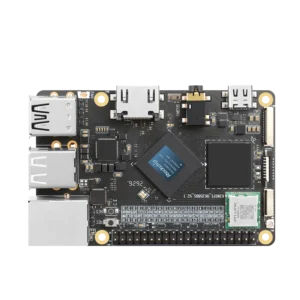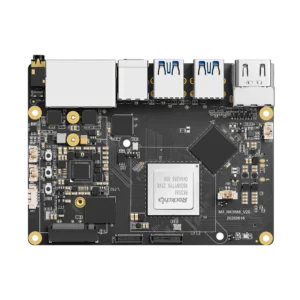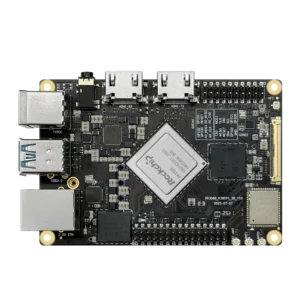


RKDevTool writes firmware to Rockchip devices over USB from a Windows PC. On KiwiPi 5, the supplied instructions cover both a complete firmware package and updates to individual partitions, including rootfs on Linux images that have that partition.
Our Rockchip Batch Tool guide covers the other Windows flashing utility. Here we’re using RKDevTool’s own upgrade and partition-download pages; the similarly named rkdeveloptool for Linux and macOS has a different interface and workflow.
Download RKDevTool and install the driver
Check the KiwiPi flashing tools folder for the Windows package. Once you have it, extract the whole archive and keep its configuration files beside RKDevTool.exe, rather than copying the executable into another directory on its own.
Use the RKDevTool and DriverAssistant 5.13 recommended for your KiwiPi 5 firmware. Keep the complete extracted package together, including its configuration files.
You also need firmware for the exact KiwiPi 5 hardware revision and storage configuration. The manual provides a KiwiPi Ubuntu 24.04 image and KiwiPi Android 15 firmware, among other options. Confirm whether the download is a complete Rockchip upgrade package or separate partition images – an .img extension doesn’t distinguish them.
Back up files before proceeding. If Linux still boots, our Windows and Linux file-sharing guide provides one way to copy them off the board; that isn’t a complete disk image, and replacing firmware can overwrite applications, configuration and user data.
Install the Rockchip USB driver
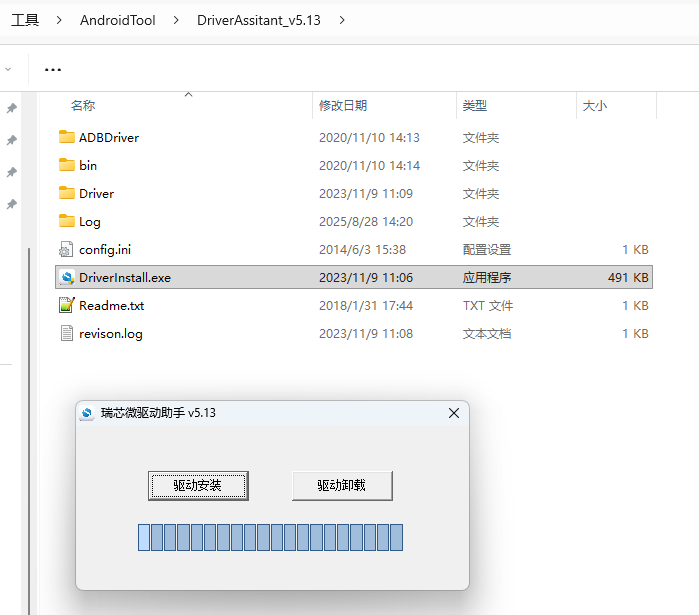
For driver downloads and installation details, see the Rockchip Driver Assistant guide. Open the extracted DriverAssistant folder, run DriverInstall.exe and select Install Driver. In the Chinese interface, Install Driver appears as 驱动安装. After connecting the board in flashing mode, check Windows Device Manager for the Rockchip USB device before trying to write firmware.
Flash a complete firmware package
Connect KiwiPi 5 in Loader mode
Use a data-capable cable connected to the board’s USB-C OTG connector, identified beside USB 3.0 in the interface diagram. The separate USB-C DC power input supplies the board; plugging the PC into a power-only connection won’t establish the flashing link.
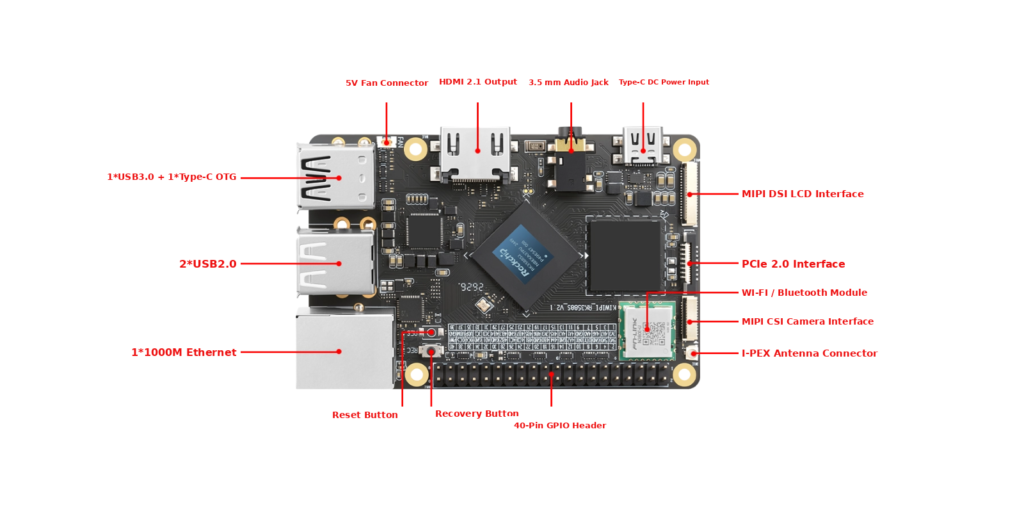
For the KiwiPi 5 revision covered here, enter Loader mode as follows:
1. With the board’s external power disconnected, connect its OTG port to the PC.
2. Press and hold Recovery.
3. After three seconds, connect the specified 12V power supply while continuing to hold Recovery.
4. Wait another three seconds, then release Recovery.
5. Confirm that RKDevTool reports Found One LOADER Device.
Check your board revision and its power requirements before connecting it. Other boards, including KiwiPi 5 Pro, may use different ports and recovery sequences.
| RKDevTool status | What to do next |
| LOADER | Continue with the matching firmware’s download procedure |
| MASKROM | Follow the board’s recovery instructions with a matching loader |
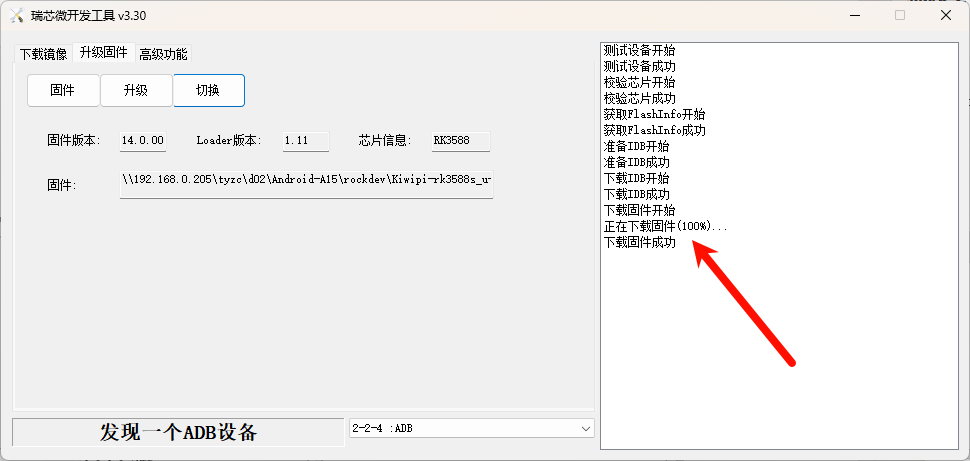
| ADB | If supported, use Switch and confirm the change to Loader |
| No device found | Check the driver, OTG connection, cable and entry sequence |
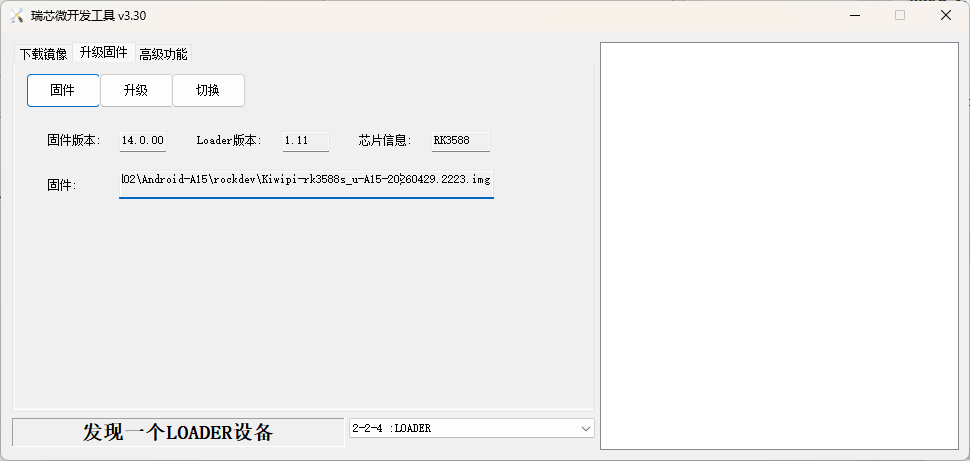
The Chinese status 发现一个LOADER设备 means the expected Loader device was found. ADB detection alone isn’t the same state. In Maskrom, use a loader matched to the SoC and board memory configuration; the RK3566 files in a Zero 3 tutorial don’t belong on an RK3588S board.
Select the image and start the upgrade
Open Upgrade Firmware (升级固件), click Firmware (固件), and select the extracted complete package supplied for KiwiPi 5, often named update.img. Wait for its information to load, recheck the selected file and device state, then click Upgrade (升级). Keep USB and power connected while the log advances.
Wait for an explicit firmware-download success message, not just a successful device check. Then allow the documented reboot and first startup to finish, check the installed OS version and test the network, display and peripherals you use. For Linux, checking the board over SSH is useful once networking is available.
Update a partition without replacing everything
Partition downloads require the correct image and partition layout. Use the parameter file or saved RKDevTool configuration supplied with your firmware. parameter.txt and config.cfg serve different purposes; select the appropriate file type when importing.
On the Download Image page (下载镜像):
1. Right-click the configuration area and select Import Configuration (导入配置).
2. Load the matching parameter file or supplied saved configuration.
3. Select the image for each partition you intend to update.
4. Use Device Partition Table (设备分区表) when needed to read the current layout, then check the download addresses and target storage.
5. Leave only the required items selected, click Run (执行), and verify every selected download in the log.
Read the current partition table and verify each target address before writing. A new row may default to 0x00000000; replace it with the correct address for the intended partition.
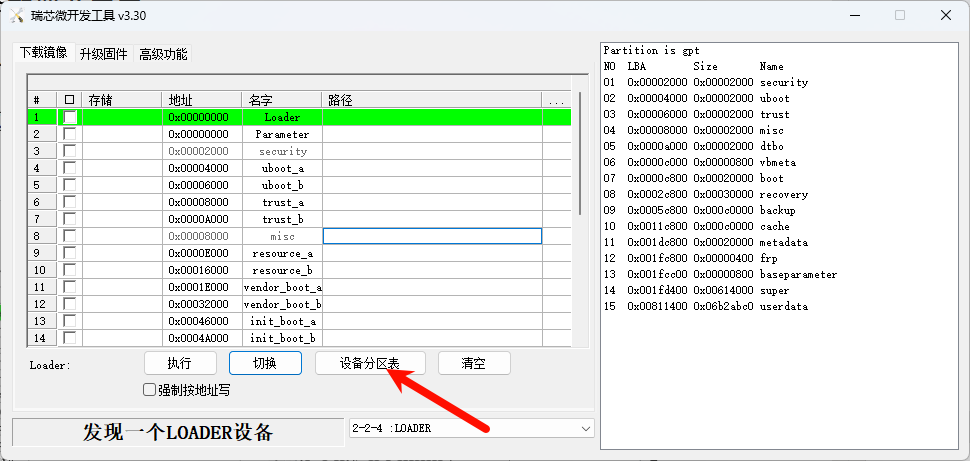
Replacing rootfs
Use a standalone rootfs.img only when the device actually has an independent rootfs partition and the image matches the installed bootloader and kernel. Read its address from the current layout and check that the image fits; Android firmware may use super instead, so adding a row named rootfs won’t create a compatible Linux installation.
When RKDevTool cannot finish
If no device appears, check Windows detection first, then the data cable, OTG port, power and Recovery timing. A powered board with a blank display still hasn’t confirmed a USB download connection. Try another known data cable before changing firmware files.
If writing starts and fails, save the full log with the firmware filename, tool version and board revision. Repeating the same operation without that information makes it harder to tell a connection problem from an incompatible image or layout.
If the write completes but the board won’t boot, check firmware compatibility and use the documented DEBUG serial connection to inspect startup. The manual’s original serial setting is 1,500,000 baud, but confirm the setting for the installed image before treating unreadable output as a boot failure.
FAQ
Does RKDevTool run on Linux
This guide uses the Windows program. rkdeveloptool is a separate command-line tool for Linux and macOS; its commands aren’t substitutes for RKDevTool’s buttons.
Should I erase eMMC first
Only when the board’s documented recovery or installation procedure calls for it. Erasing storage isn’t required just to check detection, and it can remove the existing installation and data.