

KiwiDrop lets you transfer files between Windows and Linux over a local network. It also has an Android app for phones running Android 10 or later, with device pairing and a desktop widget for sending files.
Say you’ve built an application on the Windows PC and want to send its archive to a KiwiPi. Select the paired board, drop the archive onto the kiwi widget, and accept it on the board. The repository’s screenshots show that setup with a Windows desktop and a KiwiPi 5 running Linux.
KiwiDrop is still a test version. The screenshots below show desktop version 0.7.8; download the current package from the project’s releases rather than looking for that particular version.
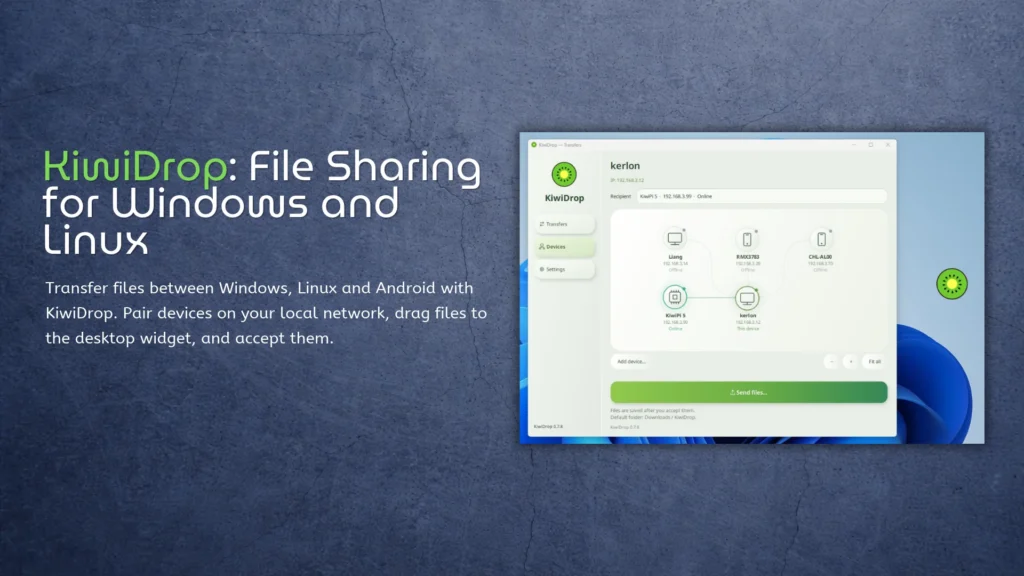
Send a file from the desktop
The floating kiwi widget gives you a small drop target without keeping the main window in front of your work. Once you’ve selected a recipient, drag a file onto it to send it to that device. For a build archive or a few saved frames, that’s a useful bit of interface to have within reach.
Its context menu opens the transfer list, recipients, devices, settings, and downloads folder. You can also hide the widget when you don’t need it. It doesn’t have to sit over the application you’re using all day.
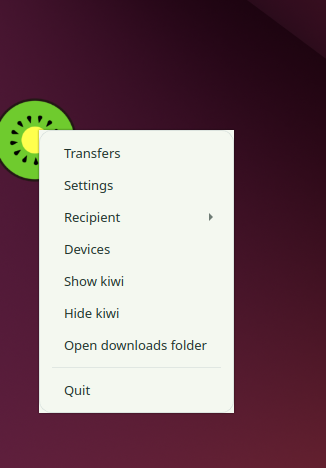
Windows Explorer offers another way to send files, and Android can send them through an app’s share action. Those are different entry points into the same paired-device workflow. You still need KiwiDrop installed on the receiving device.
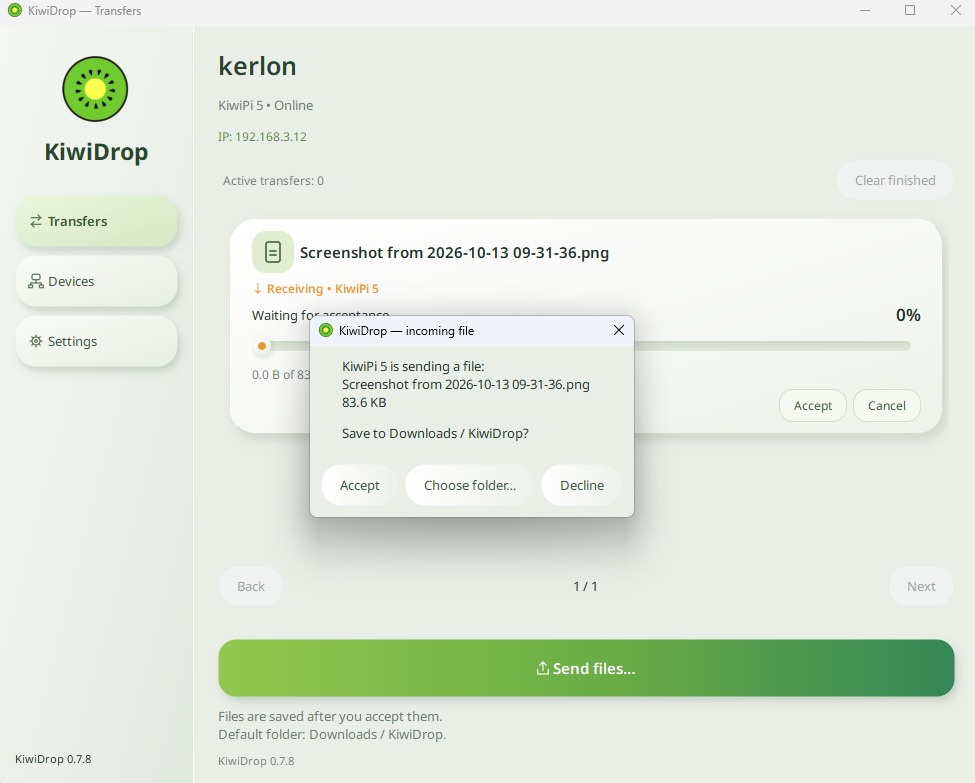
Accept the incoming file
The receiver gets a confirmation showing the sender, filename, and size. Accept the file, choose another destination folder, or decline it. The Windows screenshot shows Downloads / KiwiDrop as the proposed destination, so check that location if you’re expecting an archive somewhere else.
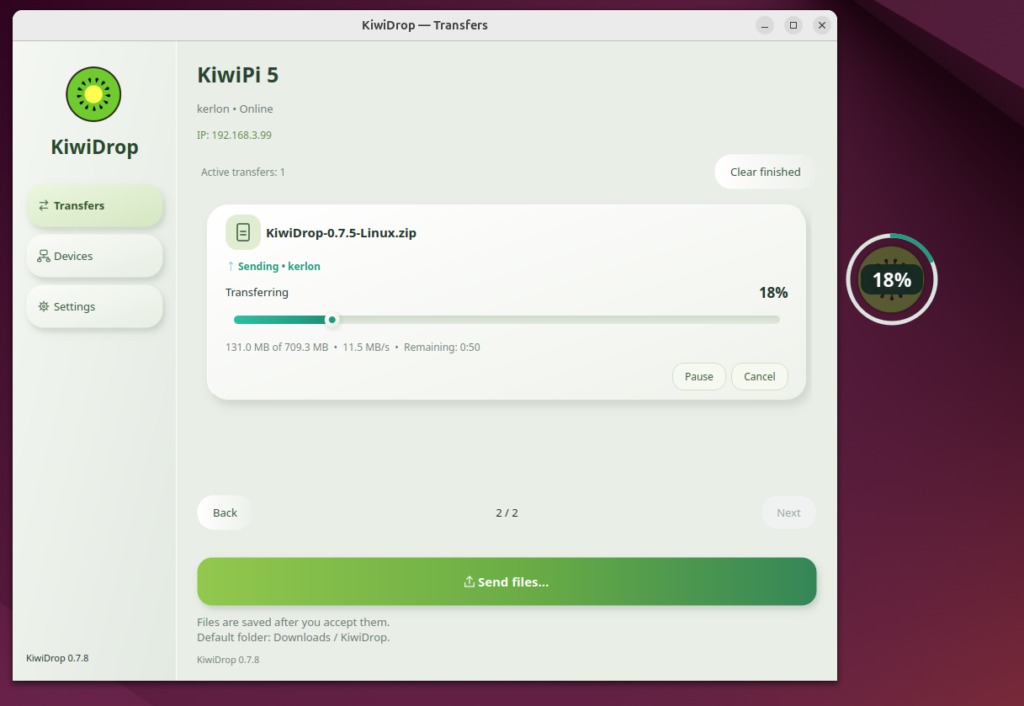
The transfer view shows progress, speed, and estimated time remaining, with pause and cancel controls. Progress also appears on the floating widget. You can leave the main window behind another application and still see whether the transfer is moving.
Install and pair your devices
Start with the package for each device’s operating system. The desktop installation methods differ, and the Android app has a minimum OS requirement:
| Device | Installation described in the README |
|---|---|
| Windows PC | Extract the complete Windows ZIP and run Install-KiwiDrop.cmd |
| Linux PC or board | Use Devices → Linux device installation; packages cover supported x86_64 and ARM64 systems |
| Android phone | Install the APK; Android 10 or later is required |
Desktop and Android installation
On Windows, extract the whole ZIP. If Python is needed, the README directs you to the included installer before running Install-KiwiDrop.cmd. Keep the package contents together rather than pulling out the installation script on its own.
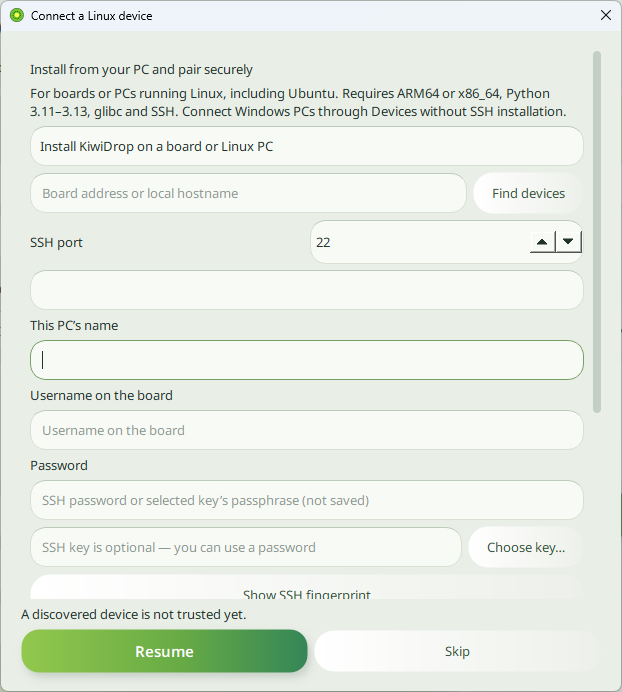
You can install KiwiDrop on a KiwiPi (or another board/PC) running Linux directly from your Windows PC. Open Devices → Add Device → Linux device installation, then enter the board’s IP address, SSH port, and Linux username. Authenticate with a password or select an SSH key, and follow the installation dialog. The board needs SSH enabled and a supported Linux environment; the dialog lists ARM64 or x86_64, Python 3.11–3.13, and glibc as requirements.
On Android, install the APK and enable notifications and background reception if you want the phone to receive files. Sending something from an Android app uses its share action. The README doesn’t list macOS or iOS packages, so this isn’t currently a replacement for every device in an Apple-based setup.
Pair with the four-digit code
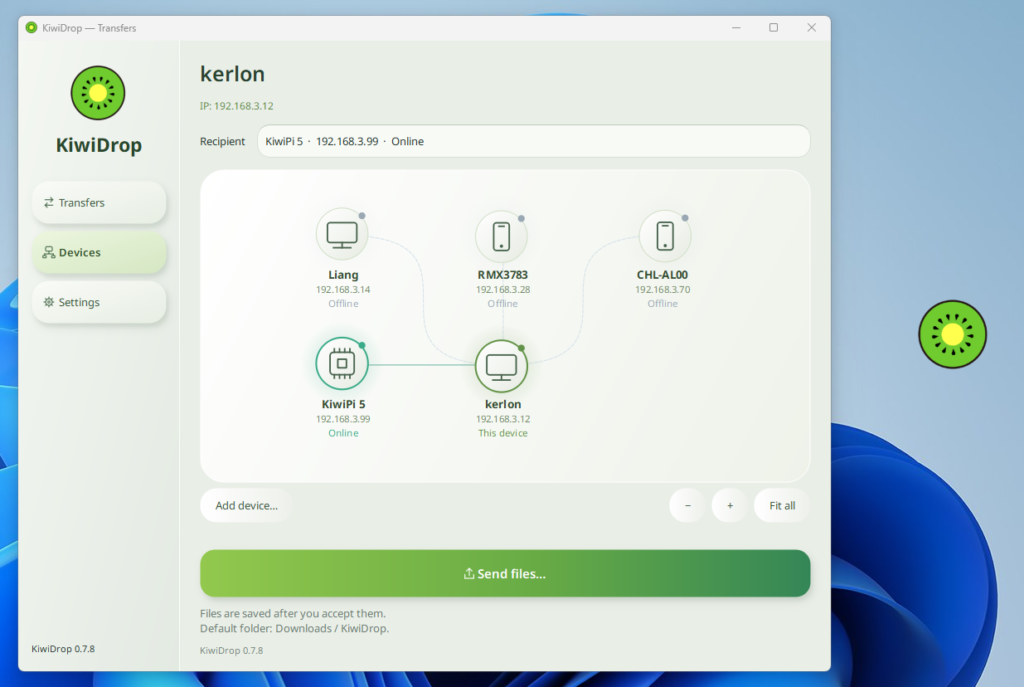
Connect both devices to the same local network. In Devices, enable pairing on the receiving device, then find it from the connecting device or enter its IP address. Enter the receiver’s four-digit code on the connecting device to complete pairing. The same process lets a PC connect to an Android phone.
The device map shows paired computers, phones, and boards with their status and local addresses. If a device doesn’t appear automatically, use its current address. Our guide to finding a Linux IP address covers that check; an address remembered from last week may belong to a different machine after DHCP reassigns it.
Check the destination before a large transfer
An archive still needs space on the receiving filesystem. Before sending a dataset to the board, check available disk space on Linux and allow room for extraction if you’ll unpack it there. A second SSD doesn’t help if the selected destination remains on the system drive.
Also check that the receiving account can write to the chosen folder. Our Linux file permission guide explains the owner and mode checks. If you already use SCP for scripted transfers, keep that workflow for automation; KiwiDrop adds a graphical send-and-accept route for the files you move manually.
Updates, including offline packages
The standard Windows and Linux ZIPs are the README’s recommended packages for everyday use. Full ZIPs also include installers for sharing updates offline. The standard edition can download those packages later through Settings → Download packages to update other devices.
KiwiDrop checks GitHub Releases at startup and through Check for updates. Downloading and installing an update requires confirmation, and the README says paired devices and settings are preserved. For a manual Windows update, extract the new ZIP and run Reinstall-KiwiDrop.cmd; on Android, install the new APK over the existing app.
Updates can also pass through paired devices without internet access. The project says these packages are digitally signed and checked before installation. That’s a statement about update verification, not a specification of the file-transfer protocol or its encryption.
FAQ
Does KiwiDrop support ARM Linux?
The release includes packages for supported ARM64 and x86_64 Linux systems. The screenshots show a KiwiPi 5 running the desktop app. Check the current release instructions for the image you intend to use.
How fast does it transfer files?
The interface displays the current speed, but the repository doesn’t provide a controlled throughput benchmark. Your network, storage, and devices affect the result. Don’t treat the speed visible in one screenshot as a guaranteed rate.
Can I distribute updates without internet access?
Yes. The README describes sharing signed update packages through paired devices. Get the packages in advance using a Full ZIP or the download option in Settings.
The KiwiDrop project repository contains the installation instructions and release link. If the test version fails, report the application version, operating system, and steps that reproduce the problem in the issue tracker.