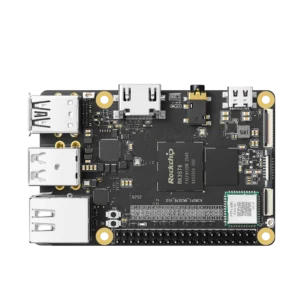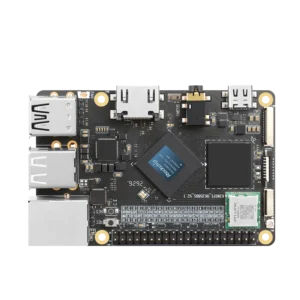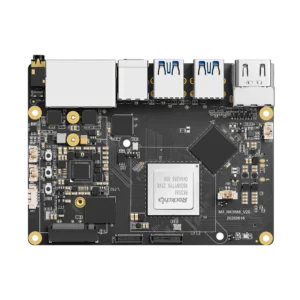


Rockchip Batch Tool writes a packaged Rockchip firmware image to a compatible device over USB. On Windows, the application runs as RKBatchTool.exe and needs the Rockchip USB driver to communicate with a device in its flashing mode.
The firmware must match the device’s hardware revision, including its storage and memory configuration. A package intended for another board can load into the tool and still be wrong for the device you’re about to flash.
Get the tool and firmware together
Start with the device manufacturer’s firmware download and flashing instructions. Use the RKBatchTool package supplied or recommended there, including its driver. A download described as the newest version elsewhere doesn’t establish support for your particular board.
Woxter’s Scriba firmware instructions, for example, show RKBatchTool 1.8. That confirms a documented use of 1.8 for those devices; it doesn’t make 1.8 the latest release or a recommendation for every Rockchip processor. Older guides also describe older Windows versions, so check the supplied driver’s compatibility with your PC.
The firmware needs the same attention. Batch Tool works with a unified Rockchip firmware package, commonly called update.img, containing components such as the bootloader and partition images. An ordinary raw disk image may also end in .img. Renaming it to update.img doesn’t convert its format.
Back up anything you need before writing firmware. If a Linux device still boots, copying files between Windows and Linux can help move documents and configuration files off it. That is a file backup, not a complete recovery image of its storage.
Flash firmware from Windows
Install the Rockchip USB driver
Extract the complete tool and driver archives. If the recommended driver package uses DriverAssistant, open DriverInstall.exe and select Install Driver, following the manufacturer’s instructions for your Windows version.
Then check Windows Device Manager after connecting the device in flashing mode. A correctly installed connection commonly appears as Rockusb Device. An ADB connection or a mounted Android storage device doesn’t by itself confirm that Batch Tool can write firmware.
Connect through the flashing port
Power down the device and follow its documented sequence for entering Loader or Maskrom mode. Some products use a Recovery button during connection; others have a separate Maskrom button or recovery procedure. There isn’t one key combination for all Rockchip hardware.
Use the designated USB OTG or flashing port, a data cable, and the specified power arrangement. A black display can be normal in flashing mode. Look for USB detection on the PC rather than waiting for the usual Android or Linux desktop.
On KiwiPi 5 Pro, for example, the two stacked USB-C connectors have different jobs: the lower one supplies power, while the upper one handles data and OTG. The KiwiPi 5 Pro power guide explains that distinction. It illustrates why port selection matters; it isn’t confirmation that an arbitrary RKBatchTool package supports the board.
Load the firmware
Run RKBatchTool.exe. In the familiar 1.8 interface, click the browse button beside FW Path and select the extracted firmware package. Wait for the application to load it and display its firmware information.
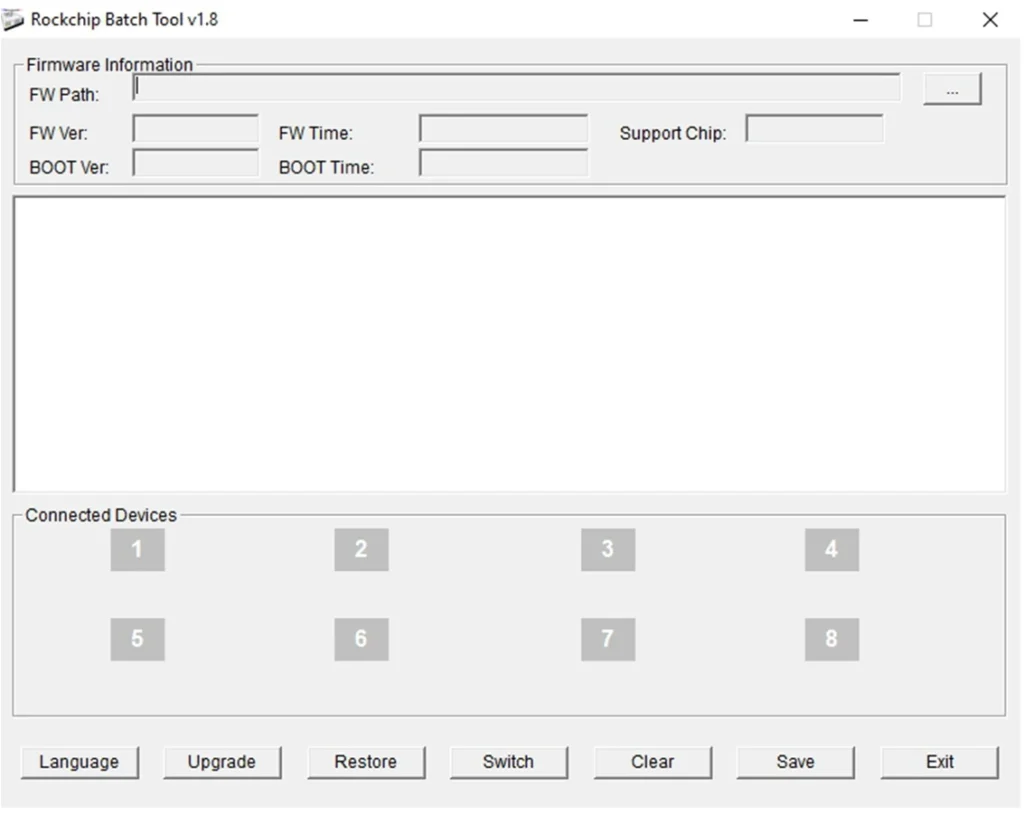
Check the selected path and the manufacturer’s model and hardware revision requirements. A package that loads successfully still needs to match the device—especially when similarly named products use different memory or peripheral configurations.
Start the write
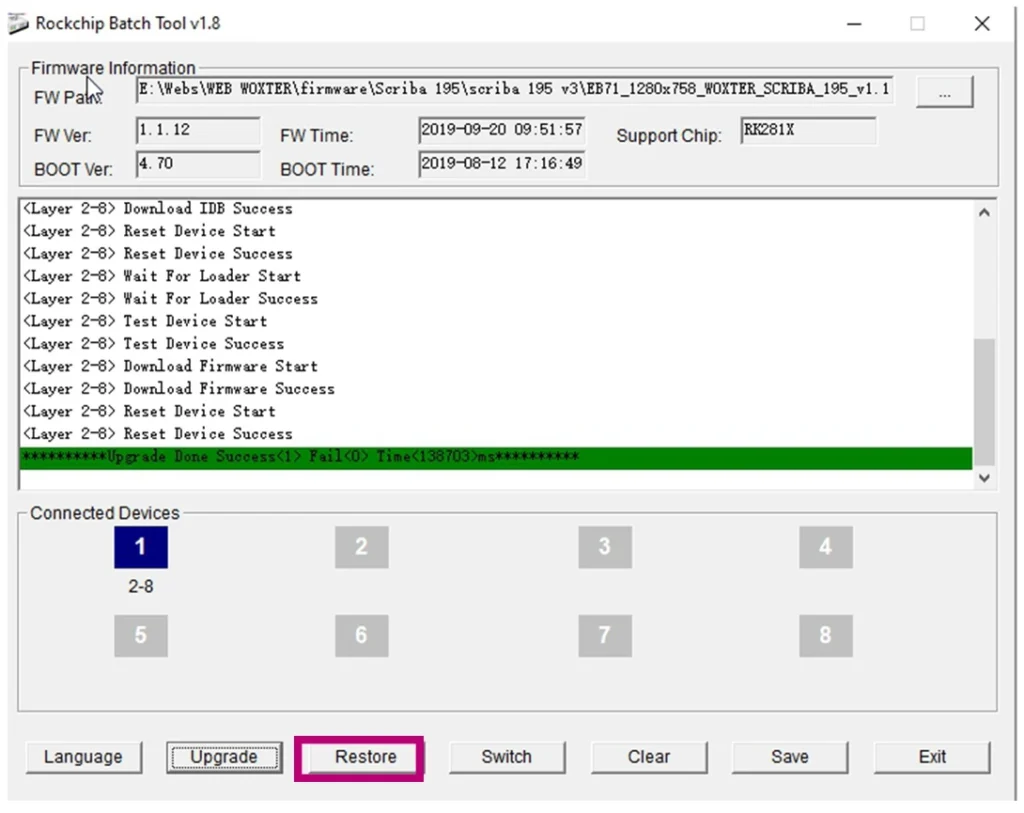
Confirm that the application detects the device before starting. Woxter’s documented 1.8 workflow shows a green numbered indicator under Connected Devices, then uses Restore to write the selected firmware. Follow your device’s instructions for choosing Restore or Upgrade; don’t assume either preserves your files.
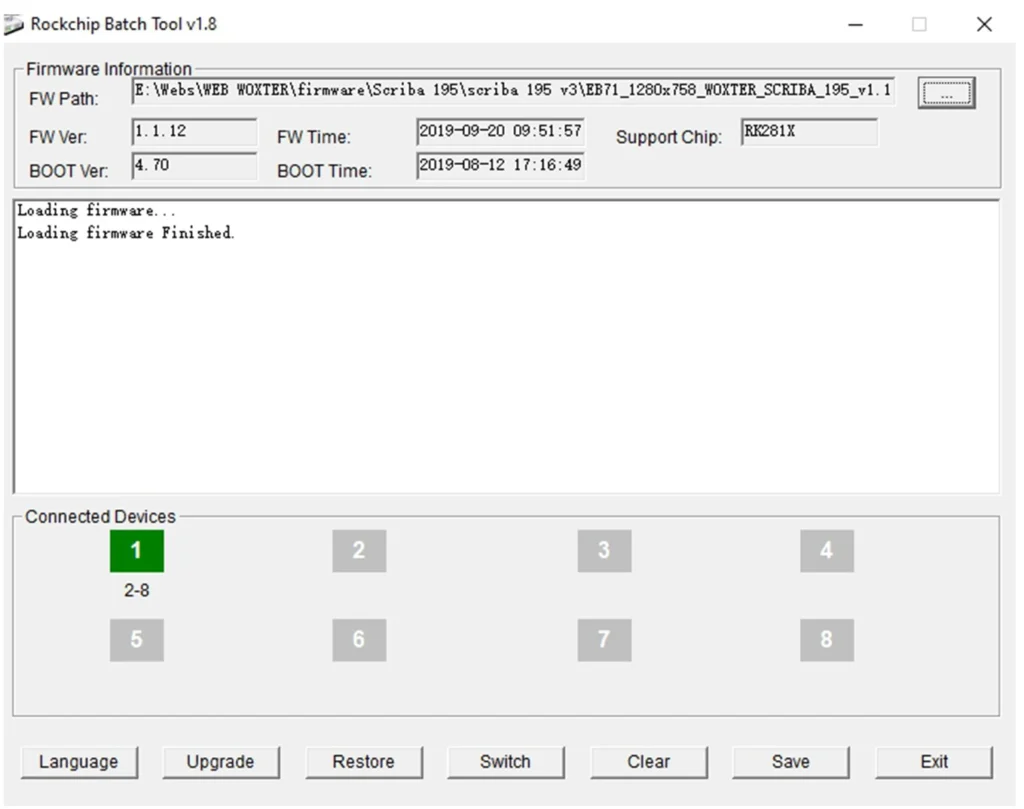
Keep USB and power connected while the operation runs, and wait for the success result in the log. The duration depends on the firmware, storage, and connection, so a time quoted for another device isn’t a useful deadline. If the operation fails, save the error before retrying.
Check the first boot
Let the device complete its documented reboot sequence, then check the installed system and the peripherals you use. If Linux starts, connecting to Linux over SSH can help inspect it remotely. A successful write confirms the flashing operation; checking Wi-Fi, storage, and displays still requires a running system.
When Batch Tool cannot detect the device
Start with Device Manager. If Windows shows no new USB device, check the cable, port, power, and entry sequence. If it shows an unknown device, inspect the driver installation. If Rockusb appears but Batch Tool stays empty, check the recommended utility version and device mode.
Try a direct PC connection and another known data cable before changing firmware. An older manufacturer’s guide may recommend a USB 2.0 port for its particular setup; that isn’t evidence that USB 3.0 always fails with Rockchip devices.
An error such as Prepare IDB Fail needs more context than “flashing failed.” Record the full log, firmware filename, tool version, and hardware revision. Radxa’s archived recovery notes describe this error on older ROCK boards, but their physical recovery procedure belongs to those boards. Use your own board’s recovery instructions.
If writing finishes but the device doesn’t boot, recheck firmware compatibility and the required power arrangement. Repeating the same write won’t correct a package intended for different hardware. Keep the log from the successful write as well as any boot output available through the board’s documented console.
Batch Tool and the other Rockchip utilities
Firefly’s firmware documentation distinguishes RKBatchTool for unified firmware from development tools for individual partitions. It also explains that AndroidTool later gained unified-image support, which is why a device’s instructions may use another utility for the same broad task.
| Utility | Host platform | Typical documented task |
| RKBatchTool | Windows | Write a unified Rockchip firmware package |
| RKDevTool or AndroidTool | Windows | Write firmware packages or selected images, depending on version and configuration |
| rkdeveloptool | Linux or macOS | Send a loader and perform supported low-level storage operations |
Choose the workflow supplied for the image. A guide showing Upgrade Firmware → Firmware → Upgrade may be describing RKDevTool or AndroidTool, rather than the RKBatchTool interface on your screen. Keep the instructions, utility, and firmware package together.
FAQ
Can Rockchip Batch Tool flash any IMG file
No. The .img extension doesn’t identify the internal format. Use a compatible unified firmware package specified for the device; a raw disk image or an individual partition image may require a different tool and procedure.
Does it work on Linux or macOS
RKBatchTool is a Windows application. Rockchip workflows on Linux and macOS commonly use other utilities, including rkdeveloptool. Their commands and accepted image formats need their own instructions.
Which Rockchip Batch Tool version should I download
Use the version recommended with your manufacturer’s firmware. There isn’t a single latest version established by the primary sources checked here, and a higher version number alone doesn’t establish device compatibility.